PDF reader for Android
A fast PDF reader and PDF viewer for Android
Open a contract, a textbook or a 300-page manual and start reading straight away. Search inside the document, jump through its contents, mark up the lines that matter and read at night without the glare.

Everything you need to read a PDF on your phone
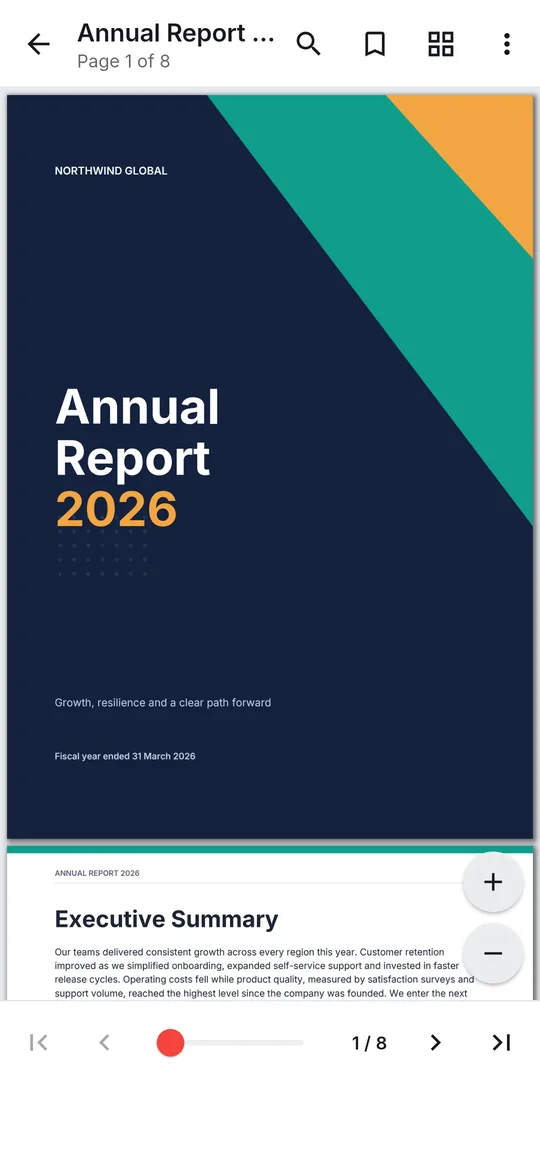
- Pinch and double-tap zoom, and a Reading mode for every document: Continuous, Page by page or Horizontal
- Fill form — type into a PDF's own form fields right in the reader
- Search in document and step from one match to the next
- Contents — jump through the PDF's own table of contents
- Page thumbnails, a page slider, Previous / Next page and Go to page
- Bookmarks, and the reader reopens on the page you stopped at
- Select text to Highlight, Underline or Strikethrough it, and see every mark in Comments
- Night mode, Screen brightness and full screen — tap the page to hide the toolbars
- Copy or share selected text; links in the PDF open, unsafe links are blocked
- Password-protected PDFs open when you know the password, and the reader respects a PDF's print and copy restrictions
Step by step
How to open and read a PDF on Android
- Install PDF Reader from Google Play and open it.
- Allow file access so the app can list the PDFs on your phone — or skip it and use Open PDF on Home, or Open with → PDF Reader from your file manager, email or chat app.
- Tap a PDF on the Home or Files tab, or search for it by name. It opens straight into the reader.
- Use the toolbar and menu for Search in document, Contents, Bookmarks, Go to page and Night mode.
- Select text to highlight it, then save a marked-up copy when you are done.
Good to know
Before you start
-
Reads offline
Opening, searching and bookmarking happen on the phone. Nothing is uploaded, and no connection is needed to read.
-
A library of your PDFs
Recent files, favourites, sorting and search by file name. Files opened from other apps appear in Recent too.
-
No ads while reading
Ads appear around the Home, Files and Tools screens — never while a document is open.
Questions
PDF Reader & Viewer FAQ
Is this PDF reader free?
Yes. PDF Reader is free on Google Play and supported by ads. Reading, searching and bookmarking never ask you to watch a video.
Can it read PDFs without internet?
Yes. Documents are opened and rendered on your device, so reading works in flight mode.
Can I search for a word inside a PDF?
Yes, when the PDF contains real text. Scanned pages are pictures of text — run Make searchable on them first, then search.
Does highlighting change my original file?
No. Your highlights, underlines and strikethroughs are saved into a new copy in the PDFReader/Edited folder.
Also in the app
More ways to work with PDFs
Get PDF Reader on Google Play
Reader, editor, scanner and converter in one free Android app. Android 8.1 or later. Supported by ads. No account needed.