PDF editor for Android
Edit, annotate and sign PDFs on your phone
Add a comment exactly where it belongs, highlight the clause that matters, or sign and send — without printing a page or leaving your phone.

Annotation tools in the PDF editor
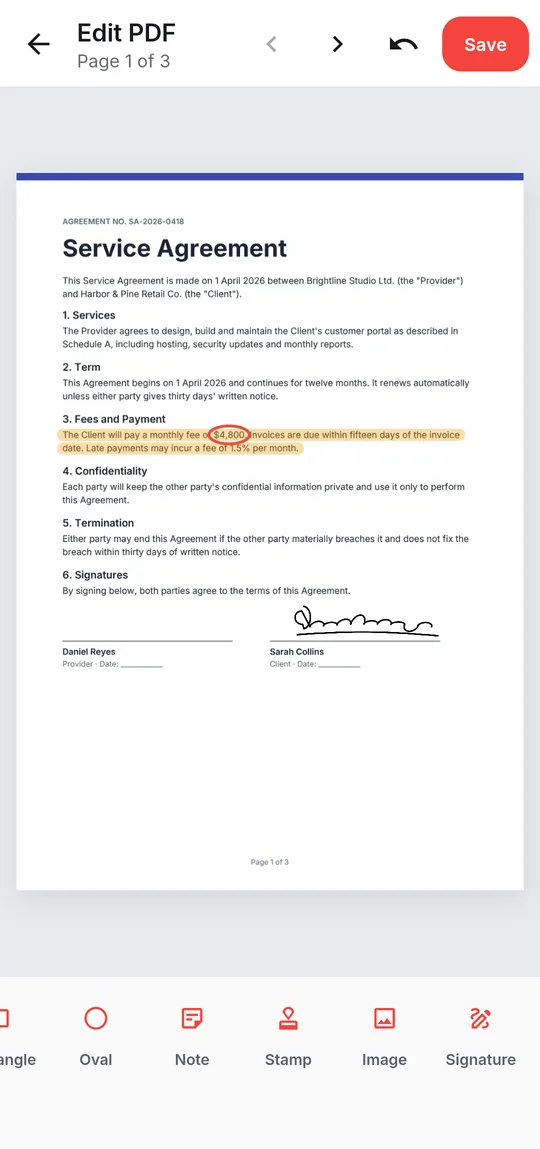
- Text anywhere on the page, with size, colour, bold, italic and underline
- Highlight and freehand Draw, with Erase
- Line, Arrow, Rectangle and Oval
- Sticky Notes, Stamps and inserted Images
- Signature and Initials — draw, type or photograph them once and reuse them on any document
- Fill & sign — dates, ticks, initials and your saved details on any PDF
- Comments — reply, export or import them as XFDF, and add a Summary of comments
- Select to move, resize or rotate what you placed, and undo mistakes
Step by step
How to add text or a signature to a PDF
- Open Tools → Edit & annotate and choose a PDF — or open the PDF and pick Edit from the menu.
- Pick a tool from the toolbar: Text, Highlight, Draw, a shape, Note, Stamp or Image.
- For a signature choose Signature, then Draw, Type or Photo, and save it; place it on the page and resize it to fit.
- Tap Save. The edited copy goes to the PDFReader/Edited folder and your original stays untouched.
Good to know
Before you start
-
How edits are saved
Your additions are written as real PDF annotations on top of the original pages, so the page text stays selectable and other PDF readers show your marks. Signatures are drawn into the page itself.
-
Annotate, not retype
The editor adds content on top of a page. To change the original wording, convert with PDF to Word, edit it, then convert back.
-
Signatures stay private
Saved signatures are encrypted on the phone with a key held in the Android Keystore, and are never included in backups.
Questions
PDF Editor FAQ
Can I sign a PDF on Android with this app?
Yes. Choose the Signature tool, then draw, type or photograph your signature and place it. It is saved, encrypted, for reuse on the next document.
Does editing change my original PDF?
No. Saving writes a new file to PDFReader/Edited and leaves the original as it was.
Can I edit the existing text in a PDF?
The editor adds text, highlights, drawings and images on top of a page rather than rewriting the words already in it. For wording changes, use PDF to Word.
Can I fill in a PDF form?
Yes. Tap Fill form in the reader to type into a PDF's own fields, or use Fill & sign to add text, dates and ticks to any page. See Fill & sign PDF for details.
Also in the app
More ways to work with PDFs
Get PDF Reader on Google Play
Reader, editor, scanner and converter in one free Android app. Android 8.1 or later. Supported by ads. No account needed.