PDF converter
An offline PDF converter for Android
Most converters ask you to upload your document to a website. PDF Reader does the conversion on your phone: the Word engine, the text-recognition models and the image pipeline are all built into the app.
Conversions in one app
- PDF to Word — rebuild a PDF as an editable .docx
- Word to PDF — turn a .docx into a PDF
- Image to PDF — photos into one PDF, sized A4, Letter or to fit each image
- PDF to image — every page, or the pages you choose, as PNG or JPEG
- PDF to text — on-device OCR that reads scanned pages too
- Make searchable — add a hidden text layer to scanned PDFs
- Scan to PDF — paper to PDF with the camera
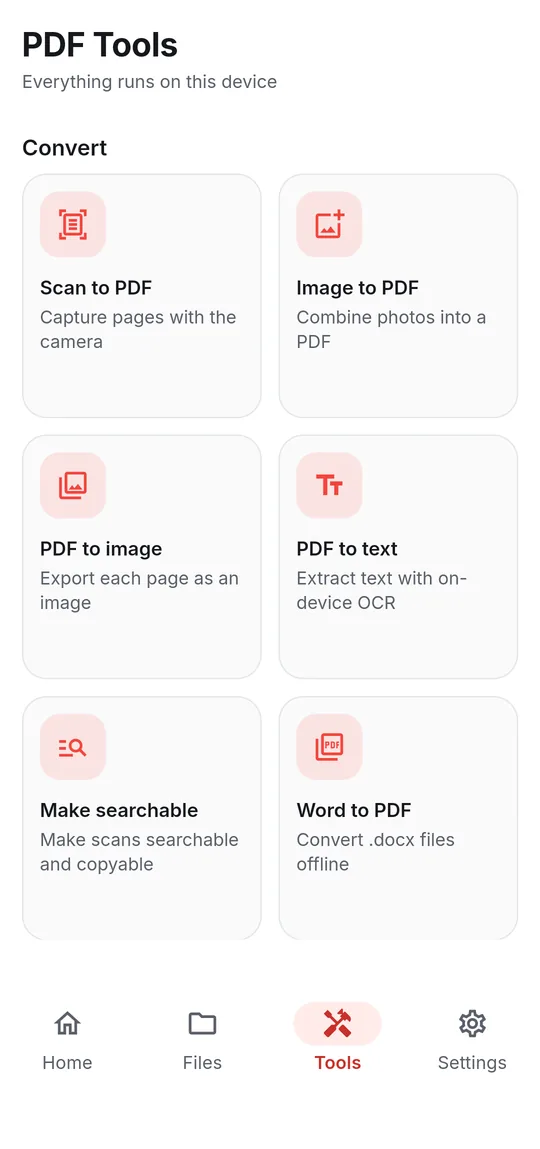
Image to PDF and PDF to image
Image to PDF takes photos from your gallery or camera and makes each one a page, in the order you arrange them. Choose A4, Letter or Fit image, and whether each photo is contained or stretched to the page.
PDF to image renders pages as PNG or JPEG. Pick the resolution (higher is sharper and larger) and JPEG quality, and export every page or just a range such as 1-3, 5.
PDF to text with OCR
PDF to text reads the words out of a PDF — including scanned pages — with text recognition that runs on your phone. Read every page or name the pages you want, then copy the text, share it or save it as a .txt file.
Choose the language of the text: English and Latin-script languages (Spanish, French, German, Portuguese, Indonesian and more) or Hindi and Marathi (Devanagari, with English words on the same page). Gujarati, Tamil, Telugu and Arabic text can't be recognized yet.
Make scanned PDFs searchable
Make searchable recognizes the text on scanned pages and adds it invisibly, so the PDF can be searched, selected and copied while the pages look exactly the same. Pages that already have text are skipped, so nothing is added twice, and your original is not modified.
Step by step
How to convert a file
- Open the Tools tab and pick the conversion — for example Word to PDF or PDF to image.
- Choose the file (or photos) and any options, such as page size or resolution.
- Start the conversion. The work happens on the device, so it runs without a connection.
- Open or share the result from the success sheet. Converted files are saved in the PDFReader folder.
Good to know
Before you start
-
No upload, no account
Files never leave your phone to be converted, and there is nothing to sign up for.
-
About saving results
When some tools finish, the app may ask you to watch a short video before the new file is saved. If you are offline or no video is available, the file is saved anyway — and your original is never changed.
-
Share straight in
Share a Word file or photos from another app to PDF Reader to start Word to PDF or Image to PDF with the file attached.
Questions
PDF Converter FAQ
Is the PDF converter really offline?
Yes. PDF to Word, Word to PDF, image conversions and OCR run on your device, with no upload.
Which Word formats are supported?
Word to PDF accepts .docx. Older .doc files need to be saved as .docx in Word first.
Can it convert Excel or PowerPoint to PDF?
No. The converter handles Word (.docx), images, PDF to Word, PDF to image and PDF to text.
Also in the app
More ways to work with PDFs
Get PDF Reader on Google Play
Reader, editor, scanner and converter in one free Android app. Android 8.1 or later. Supported by ads. No account needed.