Fill & sign PDF
Fill in PDF forms and sign documents on your phone
An application form, a rental agreement, a school consent slip: fill it in, sign it and send it back without printing, scanning or leaving your phone.

Two ways to fill in a PDF
- Fill form — when a PDF has fillable fields, type into its text boxes, tick check boxes and radio buttons, choose from drop-down lists and pick dates
- Previous field / Next field to move through a long form, and fields calculated from others fill in by themselves
- Fill & sign — for any PDF, even a scan: tap where it goes to add text, a Date, a Tick, a Cross, a Dot or your Initials
- My details — save your name, email, phone and address once and drop them onto the next form
- Signature and Initials — draw them, type them in a handwriting style, or take a photo of your signature on paper
- Save the filled form fillable so the answers can still be changed, or flattened so they become part of the page
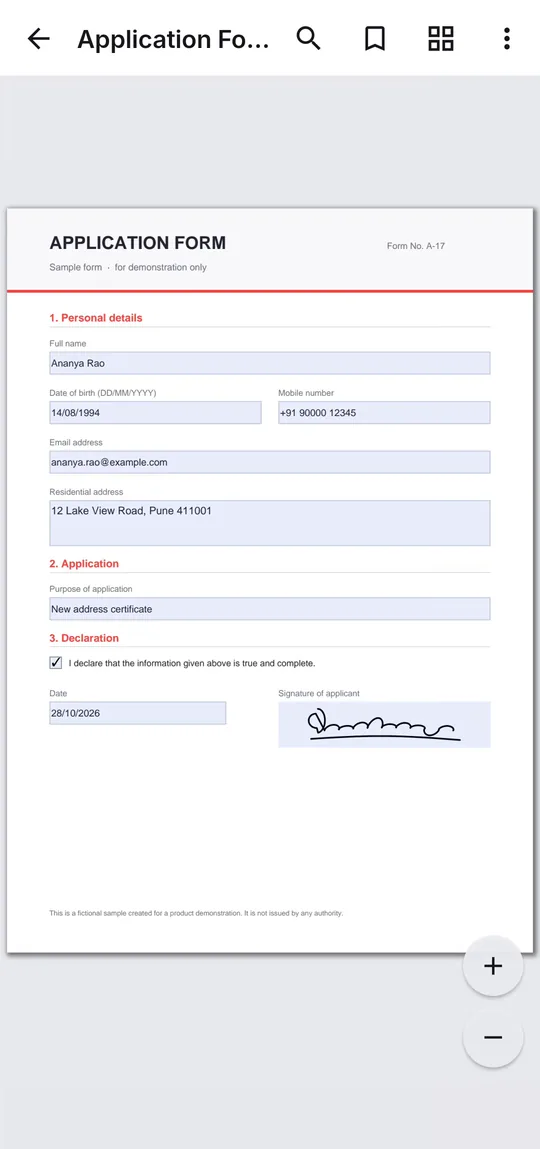
Fill in interactive PDF forms
Many official and business PDFs have form fields built in. Open one and the reader says This PDF has fields you can fill in; tap Fill form, then type, tick and choose. Signature fields take your saved signature with Add signature.
When you save, choose Keep it fillable (recommended — the answers can still be changed in any PDF app) or Flatten, which makes the answers part of the page. Forms built with XFA can't be filled, and the app respects a PDF whose author doesn't allow form filling.
Sign a PDF with your own signature
Create a signature once: Draw it with your finger or a stylus, Type your name in a handwriting style, or use a Photo of your signature on white paper — the paper becomes transparent. Save initials the same way.
Signatures are stored as sharp vector marks, so they stay crisp at any zoom, and they are encrypted on the phone with a key held in the Android Keystore. They are never uploaded and never included in backups.
Step by step
How to fill and sign a PDF on Android
- Open the PDF. If it has form fields, tap Fill form; otherwise open Tools → Fill & sign and choose it.
- Type your answers, or pick an item such as Date, Tick or Name and tap where it goes on the page.
- Add your Signature or Initials — draw, type or photograph them the first time, then reuse them.
- Save. A new copy is written and your original stays as it was. Share it, or use Save a copy to… to keep it in any folder or in Drive.
Good to know
Before you start
-
Private by design
Your details and signatures are encrypted on the phone and never backed up. The document is filled in on your device and never uploaded.
-
Not a digital certificate
A signature added in the app is a mark on the page, not a certificate-based digital signature. Whether it is accepted depends on the document and your local law.
-
Works offline
Filling, signing and saving all happen on the phone, so you can finish a form without a connection.
Questions
Fill & Sign PDF FAQ
Can I fill in a PDF form on my phone?
Yes. If the PDF has fillable fields, tap Fill form in the reader and type into them. If it doesn't — a scan or a printed form — use Fill & sign to type text, dates and ticks anywhere on the page.
How do I sign a PDF on Android?
Open Tools → Fill & sign (or the editor), choose Signature, and draw, type or photograph your signature. Place it on the line and save. It is kept, encrypted, for the next document.
Can the form still be edited after I fill it in?
Yes, if you save it with Keep it fillable. Choose Flatten instead when the answers should become part of the page.
Which forms can't be filled?
Forms built with XFA, and PDFs whose author has turned form filling off. You can still type on them with Fill & sign when the author allows changes.
Also in the app
More ways to work with PDFs

Get PDF Reader on Google Play
Reader, editor, scanner and converter in one free Android app. Android 8.1 or later. Supported by ads. No account needed.